Mitacs logo with stylized blue text and an abstract symbol on the left, ending with a green circle containing a blue plus sign.
What is Mitacs Plus?

Mitacs Plus is our new self-serve application portal designed to improve how you submit and manage projects, access program funding, and collaborate with partners.

Built to support a more streamlined digital experience, the platform provides greater visibility into your applications, enables real-time status tracking, and simplifies how you manage changes and navigate each stage of the process.

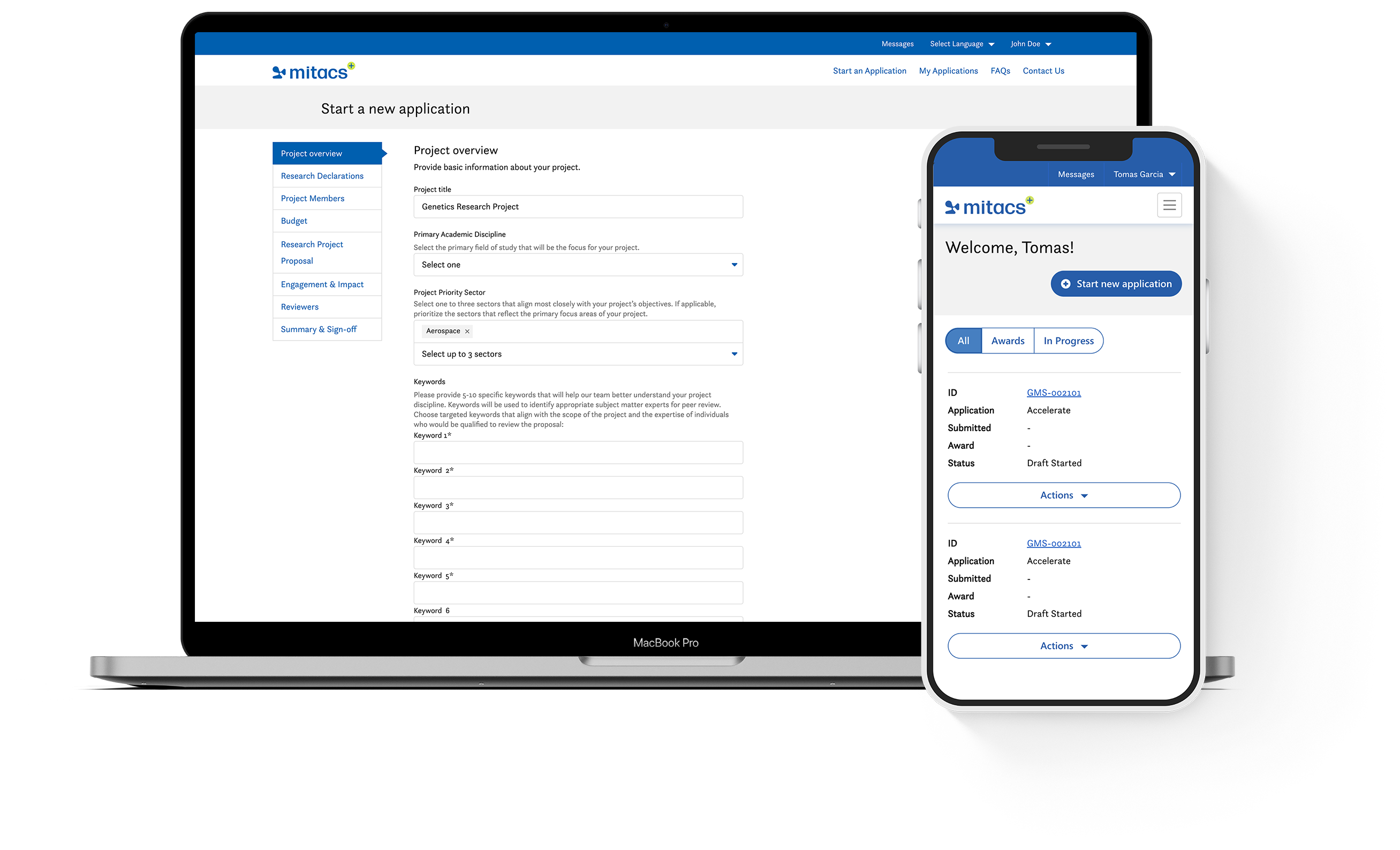
A laptop and smartphone display the Mitacs project application interface, showing project overview fields on the laptop and application progress menus on the phone.

New features include

User empowerment

Manage applications, view real-time status updates, and request changes — all in one place.

Post-secondary
institution access

Administrators can review, sign off, and monitor project progress with full visibility.

Simplified experience

A modern, intuitive platform, designed to reduce complexity and improve collaboration.

Mitacs Plus is more than a portal — it’s part of our commitment to building a seamless, scalable innovation ecosystem across Canada!

Eligibility for Mitacs Plus

At this stage, new Mitacs applications must meet the following criteria to be able to go through Mitacs Plus:

  • Apply under the Mitacs Accelerate program, excluding Accelerate Entrepreneur and Accelerate Umbrellas
  • Possess only a single academic supervisor
  • Possess only a single partner organization (multiple contacts within the single partner are allowed)
  • Be intended for interns who are actively registered at their institution; recent graduates are not currently supported on the portal
  • Utilize a $15,000 CAD or $20,000 CAD per unit funding model. (The $20,000 CAD per unit funding model is only available to postdoctoral fellows)
  • Can use the four-month or six-month internship unit (IU) model
  • Not be intended as a joint application with other programs (e.g., NSERC)
  • Applications can be submitted in English or French


Mitacs Plus will eventually expand to include all of our funding streams and program offerings.

All applicants must meet the basic eligibility criteria for the Mitacs Accelerate program to be eligible for funding. Please review this criteria prior to applying.

Not sure if your project fits these criteria?

Contact your Mitacs Advisor before starting an application.

Vous ne savez pas si votre projet répond à ces critères ?

Contactez votre conseiller ou conseillère Mitacs avant de commencer votre application.

How to Use

Office of Research Services Representatives

As an ORS representative, you will receive an invitation by email to create your Mitacs Plus account. Please click the registration link in the email, which will lead you to the Mitacs Plus page. Follow the instructions to create your new account.

Please fill in all required fields in your profile, including your name, contact information, and preferred communication language.

As an ORS representative, you will see that your contact type is pre-set as “ORS Representative.” This status will give you the ability to view all projects in development, submitted, and approved at your academic institution.

Clicking “My Applications” in the top navigation menu will take you to a list of applications at your institution.

You can filter the list to view applications by status, such as those in progress or at the award stage.

To view a specific application, click the application ID or select the three dots next to the application and choose “View Application.”

From there, you can access key details, including the application status, award information, messages, and associated documents.

Once applicants have completed the application form, the ORS representative will receive an email notification that an application is ready for their review. This ORS sign off is required to complete the submission of the application to Mitacs.

Applications will be automatically submitted for review once all required signatures are added.

By clicking on the “My Applications” tab, you will see a list of all applications created by researchers at your institution. Under the “Status” column, you will see the status of each project.

  • Draft started: The application is currently being drafted by applicants.
  • Pending application signatures: All required application fields are completed, and an applicant has initiated the sign-off phase of the application. Application content is now locked and requires both the academic supervisor and partner to sign that they approve of the application’s final contents and Mitacs’s Terms and Conditions.
  • Pending institution signatures: All required participant signatures have been added, and the completed application is now ready for the final sign-off from the academic institution’s Office of Research Services. Upon obtaining this signature, the application will automatically be submitted.
  • Under review: The application has been submitted and is undergoing review. This phase will typically take six to eight weeks.
  • Revisions required: Revisions to the application are required, either in response to reviewer feedback or because a field or form was deemed incomplete by a Mitacs staff member.
  • Project declined: The application has unfortunately been unsuccessful and will not be funded.
  • Project approved: The application has been successful! The applicants will be asked to confirm key project details (such as which interns will be participating and their official start dates). Upon receipt of these details and partner payment, an Award Letter will be issued, formally clearing the application to begin and releasing funds to the institution.

For more information about any individual project, you can click the three dots under the “Actions” column and view the application details.


Applicants

Your Mitacs Advisor will provide you with a link to the platform if your project is deemed to meet the platform’s eligibility criteria. Upon opening the portal, you will be prompted to sign in or create an account.  

Upon creating an account, you will be asked to verify your email address and then sign-in. Then, you will be free to explore the portal, complete your profile, and start an application. 

Please fill in all required fields in your profile, including your name, contact information, organization, and preferred communication language. 

Note that to fill in your organization’s name, you will be prompted to look your organization up in our database. If your organization is new to Mitacs, you can create a new record to capture your organization’s details. If your organization operates nationally and has an English and a French name, please search for your organization’s name in English and in French before creating a new account, as this will help to prevent duplicated information. 

The application screen is divided into several sections. Complete each section and click “Next” to proceed to the next one.

You can use the “Next” and “Previous” buttons at the bottom of the screen to navigate between sections.

Inviting contributors to your application

You can add contributors to your application on the “Project Members” tab of the application form. There are three roles you can select for project members:

  • Academic Supervisor
  • Partner Organization
  • Grant Writer

The Grant Writer role can be assigned to any student/postdoctoral researcher, trainee, or administrative contact assisting with drafting an application.
As our new process does not name interns to projects until after submission, if you have a prospective intern helping you draft the application, they should be added as a “Grant Writer.”
They can then be added as an “Intern” after submission.

To add new project members, please:

  • Navigate to the “Project Members” section
  • Click on “+ Add”
  • Enter that person’s name, email, and turn on “Has Edit Permission”
  • Set their role as “Grant Writer”
  • Click “Invite”

This will send an invite email to the new project member. They will need to create an account (if they don’t already have one), set up their profile (if applicable),
and they will be granted access to your application.

Please note your Office of Research Services contact(s) will automatically be added to your application.

Drafting Content

The bulk of the application content is submitted via the upload of a Word document containing our application template.
This document can be worked on collaboratively by your team and reviewed by your Mitacs Advisor prior to its upload.

Applicant signing

Application sign-off is the final step in your application, where all core participants (the academic supervisor, the partner organization, and the institution’s Office of Research Services) will be asked to sign off that they approve of the application contents and that they agree to Mitacs’s Terms and Conditions in submitting the award.

Upon entering the application sign-off stage, the application will be locked, so that no content can be altered after a party has approved it. If you wish to make changes to an application after entering the application sign-off stage, please email [email protected] and our team will unlock it for you.

Please note that if reopened, all parties will need to re-sign the updated application before it can be submitted.

ORS signing

Once you have completed your application form, the ORS (or equivalent) at the respective postsecondary institution(s) of the academic supervisor(s) will receive a notification that an application is ready for their review. The ORS sign off is required to submit your application to Mitacs. Please note that academic institutions may have their own internal approval requirements, timelines and processes. Please contact your institution’s ORS for further information.

Your application will be automatically submitted once all required signatures are added.

By clicking on the “My Applications” tab, you will see a list of all applications created by researchers at your institution. Under the “Status” column, you will see the status of each project.

  • Draft started: Application is currently being drafted by applicants.
  • Pending application signatures: All application fields are completed, and an applicant has initiated the sign-off phase. The application content is now locked and requires both the academic supervisor and partner to confirm their approval of the application’s final contents and Mitacs’s Terms and Conditions.
  • Pending institution signatures: Both the academic supervisor and partner have signed the application. It has now been flagged for signature by the academic institution’s Office of Research Services. Once signed, the application will be automatically submitted.
  • Under review: The application has been submitted and is undergoing review. This phase typically takes six to eight weeks.
  • Revisions required: Revisions are required either due to reviewer feedback or because a field or form was incomplete as determined by a Mitacs staff member.
  • Project declined: Your application has unfortunately been unsuccessful. Please review feedback or notes from staff to learn how to improve future submissions.
  • Project approved: Your application has been successful! You will be asked to confirm key project details, such as participating interns and their official start dates. Once these details and the partner payment are received, an Award Letter will be issued to officially clear the project to begin and release funds to the institution.

For more information about any individual project, click the three dots under the “Actions” column to view the application details.

To request any changes to your project after submission, please email our team at [email protected].

For more detailed instructions, please click here to view our user guide

What to Expect

Continuous Improvement

Mitacs Plus is now available to all institutions and will continue to evolve with regular updates that add capability and improve the user experience.

Feedback

Ongoing feedback plays a key role in shaping improvements, helping ensure a smooth and effective experience for all applicants.

All applicants will be receiving a survey on their Mitacs Plus experience upon application submission. We would greatly appreciate any insights you can provide to help us continue to improve and refine our system.

Ready to get started?

All projects begin with a quick conversation to ensure the right fit and approach.

Prêt à vous lancer ?

Tous les projets commencent par un bref entretien afin de s’assurer que le projet et l’approche sont adaptés.

Frequently Asked Questions

FAQs

General Mitacs Plus Questions

What is the benefit of this new portal?

This new self-serve application portal boasts many exciting features, including:

  • Improved user autonomy: Empowering applicants to self-manage their application, access real-time status updates, and request changes directly through the portal.
  • Streamlined user experience: Simplifying the user interface and reducing the complexity of the application process.
  • ORS access: Offering highly anticipated and unique access for ORS representatives to sign off on applications, access project statuses and documents, and monitor award activity.

Will I be able to manage all my Mitacs projects in this new platform?

Mitacs Plus has been designed with the goal of becoming a centralized hub for all Mitacs offerings. To begin, it will process new applications for our Mitacs Accelerate program only. It will eventually expand to include all our funding streams and offerings, and will allow users to manage all their Mitacs applications.

Will my past projects be available on this platform?

At launch, only new applications will be visible on the Mitacs Plus platform. Applications and projects submitted prior to the launch of Mitacs Plus will be managed the same way as before.

What happens to any applications I am currently drafting? Do I need to switch to the new platform?

If you have already started an application on our old systems, you will be able to continue until submission for a limited time during the transition. The deadline to move all applications to the new platform will be communicated to you through the old platform and/or your Mitacs Advisor.

Will all our projects be eligible for Mitacs Plus?

Eligibility depends on specific application criteria. Please refer to the eligibility section above for full details on what can currently be submitted through Mitacs Plus. Not sure if your project fits these criteria? Contact your Mitacs Advisor before starting an application.

Mitacs Plus will eventually expand to include all of our funding streams and program offerings.

Understanding Key Terminology and Roles

Who is an academic supervisor? 

An academic supervisor is one of the primary applicants on a Mitacs application. They contribute their expertise to addressing the research challenge and provide mentorship and support to the interns. They directly oversee the work of the intern(s) on a Mitacs project in collaboration with the project’s partner organization.  A university academic supervisor must be a faculty member at an eligible Canadian academic institution who is eligible to hold Tri-Agency funds and will be responsible for managing the Mitacs program funds. College academic supervisors may be faculty or designated staff, and at colleges, the research office manages the program funds.  

What is a partner organization? 

A partner organization is one of the primary applicants on a Mitacs application. They are a non-academic organization and must be a for-profit or eligible not-for-profit corporation, municipality, or hospital based in Canada. This partner will host the project intern(s) in-person or virtually over the course of the project and co-supervise their work alongside the intern’s academic supervisor. 

In applying for a Mitacs internship, the named partner organization also commits to financially contributing to the project. These funds must be received by Mitacs before a project can begin.  

For-profit businesses and not-for-profit corporations operating outside of Canada may be eligible as additional partners on projects with a Canadian partner organization.  You can verify a partner organization’s eligibility with your Mitacs Advisor.  

Who qualifies as an intern? 

An intern is a student, recent graduate or postdoctoral researcher at a Canadian postsecondary institution who undertakes a Mitacs internship under the supervision of an academic supervisor with an eligible partner organization. 

This intern will carry out the project objectives in four-month increments (or internship units). 

Interns are named to projects after an application has been submitted through Mitacs Plus and must be vetted for eligibility before they can begin work on a project. All Mitacs interns receive a stipend as determined by the project budget, which is administered by their academic institution. 

What is the Grant Writer role? 

The Grant Writer role can be assigned to a student, postdoctoral researcher, trainee, or administrative contact who is assisting with drafting an application. Since interns are formally added to projects after submission, individuals who are expected to become interns can still contribute during the application stage by being added as a Grant Writer. Once the application is submitted, they can then be named to the project as an intern.

Application Process

Why can’t I name interns during the application?

It is common for an academic supervisor not to be certain of which interns will undertake the internship at the time of application. To standardize our process for all applicants, Mitacs has streamlined its application so that interns are only required to be named after submission of the application.

An intern can be added to the project after submission. All interns must be named and vetted for eligibility before their internship can be approved and before they can begin working on the project.

Interns are at the core of Mitacs programming, and we recognize they are often active contributors to the development of research proposals. If you have an intern contributing to the application, you can add them to the Project Members tab as a Grant Writer. This status will enable them to assist in the drafting of the application.

How do I add an assistant to my project?

To add an assistant or team member to help with drafting your project application, please follow the steps outlined below. Please note that even if you already have an intern in mind and they will be helping you draft the application, the new Mitacs process only requires interns to be named after submission. If your intended intern will help you draft the application, please assign them as a ‘Grant Writer’ below and you can then add them as an ‘Intern’ after submission.

  • Start an Application
  • Navigate to the “Project Members” section
  • Click on “Add a Project Member”
  • Enter that person’s name, email, and turn on “Has Edit Permission”
  • Set their role as “Grant Writer”
  • Click “Invite”

This will send an invite email to the new project member; they will need to create an account (if they don’t already have one), set up their profile (if applicable), and they will be granted access to your application.

What are research costs?

Research costs are the direct costs of the project beyond the intern stipend amount. Please refer to Mitacs’s Use of Funds policy for details, and note that research costs cannot be paid to the academic institution or partner organization. This amount cannot exceed $5,000 per 4-month internship.

How do I get approval from my Office of Research Services (ORS)?

Once you have completed your application form, the ORS (or equivalent) at the respective postsecondary institution(s) of the academic supervisor(s) will receive a notification that an application is ready for their review. The ORS sign off is required to submit your application to Mitacs. Please note that academic institutions may have their own internal approval requirements, timelines and processes. Please contact your institution’s ORS for further information.

How can I change my award value from $15,000?

Mitacs’s standard funding model is $15,000 per internship unit of 4-month/6-month duration. Postdoctoral researchers are eligible for $20,000 per internship.

If you believe you are eligible for an alternate funding model, please contact us by clicking on the ‘Contact Us’ button and providing us with details. If you are eligible, we will update your application accordingly.

Does a Mitacs Advisor still need to review my application before submission?

We recommend having your Mitacs Advisor review your research proposal to help ensure completeness and eligibility. Please share your drafted proposal with your Mitacs Advisor for feedback prior to uploading it to the portal.

I am an intern. Can I be involved before the application is submitted?

Yes. While interns are formally added to projects after submission, you can still be involved in the application process.

If you are contributing to drafting the application, you can be added as a Grant Writer. Once the application is submitted, you can then be named as an intern on the project. If your professor has asked you to start drafting the proposal yourself within Mitacs Plus, you will need to invite your academic supervisor within the portal, at which point your academic supervisor can add you as a Grant Writer.

How can I check the status of my application?

Once your application has been submitted, it will appear on your dashboard where you can access an overview of your applications. To navigate to the page:

  1. Click on “My Applications” in the top navigation menu.
  2. Locate your application in the list. The current status will be displayed on the application row.
  3. For more details, click the application ID or select the three dots next to the application and choose “View Application.”
  4. Within the application, navigate to the “Status and Decision” tab to view detailed status information. Depending on your communications settings, you will receive a notification when your project status changes.

How will I be notified of application updates?

All project members named on an application will receive a notification from Mitacs Plus whenever there is an update available.

You will also receive these notifications within the platform on the Messages page depending on the Communication Preferences settings in your Profile. You can access your messages by clicking “Messages” in the top right corner of the platform. We recommend enabling all notifications to avoid missing important messages about your application that may result in delays.

Why was my application sent back for revisions?

Research proposals undergo external peer-review by subject matter experts to ensure quality and integrity of projects that receive Mitacs funding. Applicants may be asked to revise their proposal in order to address issues raised through the peer-review process or to provide additional information or clarification, as necessary, to inform Mitacs’ funding decision.

Do I have to implement all requested revisions?

The external peer-review process provides applicants with constructive feedback to address potential limitations and improve the quality of their project. . Applicants are strongly encouraged to consider how reviewer feedback can be integrated into their proposal with this purpose in mind. In the event that applicants disagree with review comments, the applicant may choose to offer a well-reasoned rebuttal in response to particular reviewer comments in the cover letter attached to their revised proposal. Please note that cover letters are made accessible to external reviewers, if a revised proposal is sent for a subsequent round of peer-review. The decision of whether a revised proposal will require a subsequent round of peer-review is made at Mitacs’ sole discretion.

How does the intern receive their award? 

Mitacs awards are administered by the intern’s academic institution and may be provided as a stipend or a salary depending on the intern’s status and the policies of the institution. The exact value of the award is determined by the budget submitted in the project application.

Once the partner contribution funds have been received by Mitacs, Mitacs will send the full award value for each internship unit to the academic institution. The intern will then receive their payment as a stipend or salary, depending on their arrangement with their institution.

Participants can check the payment status of partner invoices in Mitacs Plus by navigating to My Applications, selecting the relevant project ID, and opening the Internship Details section.

Please note that Mitacs’ Terms and Conditions stipulate that no work begin on a project until the project has been approved and payment has been received. Any work conducted on an internship before payment is received and a formal award letter/notification has been issued may not be eligible for funding.

Can we start the project before final approval?

In order for your internship(s) to begin: 

  1. Your project application must be approved
  2. Your named intern(s) must be deemed eligible by Mitacs
  3. Funding must be received from the partner organization and disbursed to the academic institution
  4. An award letter/notification confirming all details of your internship must be issued.
    Please note a separate award letter/notification is issued for each internship unit (4- or 6-month duration) within a project, and must be received prior to beginning work on each unit.

You will be notified through Mitacs Plus when you are able to begin. You can check your dashboard for the status of your application and award notifications at any time.

Please note that any work conducted prior to the above conditions being met may not be eligible for Mitacs funding and is done at the risk of the participants. Mitacs is not liable for any losses incurred on an internship unit(s) prior to an award letter/notification being issued.

When will I receive my invoice? 

Once your project is approved, the academic supervisor will have to name at least one eligible intern and enter internship dates. Mitacs will then send an invoice to the named partner organization(s) based on the invoicing preferences of the partner. This invoice is due upon receipt; any delays in payment will result in delays in internship start dates.  

Why am I being taxed for my contribution as a partner organization?  

Mitacs is registered for GST/HST and is required to collect taxes on any consideration that is received for taxable supplies. Funding provided by partner organizations constitutes consideration for a supply of services that is subject to GST/HST unless that supply is either zero-rated or exempt from GST/HST purposes.

If you can provide us with a tax-exempt status document, we can assess whether the taxes on the invoice can be waived.

If you have any further questions on this, please reach out to the Mitacs Finance team at [email protected].

Project Management

How do I view my project details?

To view your project details, please navigate to your application’s dedicated page:

  1. Click “My Applications” in the top navigation bar.
  2. Locate your project in the submitted project list. The current status is displayed in the “Status” column.
  3. For more details, either, Click the Project ID, or Click the three dots (•••) next to the project and select “View application.”
  4. This will open an overview of your project, including its status, associated files, and any messages received relating to the project from our Service Delivery team.

Where can I find all the files associated with my project?

You can view any documents associated with your project by navigating to your project page on our portal. To do this:

  1. Click “My Applications” in the top navigation bar.
  2. Locate your project in the list of submitted projects.
  3. To open the project, either, Click the Project ID, or click the three dots (•••) next to the project and select “View application.”
  4. Once on the project page, click the “Documents” tab to view all files associated with your project.
  5. If you want to see a copy of your full submitted application, click on the blue “Actions” button in the upper right side of the page, and then select “View Application”.

How do I change my start dates?

To change the start date of one or more units on your application, please email our [email protected] inbox detailing the request.

Please be sure to include:

  • Your application ID
  • Which units you want to update the dates of
  • The new dates you want them adjusted to

Please ensure you CC the relevant participants so we can confirm that all parties are aware of and consent to the change.

How do I update an invoicing contact?

To update the invoicing contact on a project, please email our [email protected] inbox detailing the request.

Please be sure to include:

  • Your application ID
  • The name and email of the new invoicing contact at the partner organization

If you wish for a different organization than the one named on the project to be invoiced, a cash flow statement may be required. Please let us know if this is the case and ensure you CC the relevant participants so we can confirm that all parties consent to the change.

How do I change an intern on my project?

To change the intern of one or more units on your application, please email our [email protected] inbox detailing the request.

Please be sure to include:

  • Your application ID
  • The name of the unit(s) requiring the intern change
  • The name and email of the new intern
  • The effective date of the change

Please ensure you CC the relevant participants so we can confirm that all parties are aware of and consent to the change.

If a key participant is missing, such as the former intern, we may need to contact them about the request before we can process the change.

I want to top up my intern’s funding. How do I update the budget?

To update the budget and provide a top-up, please email our [email protected] inbox detailing the request.

Please be sure to include:

  • Your application ID
  • Whether you want the top-up to apply to all or only a select number of units
  • The value of the top-up you want to provide

A member of our team will get back to you confirming the details.

How do I request a project extension?

To request a project extension, please email our [email protected] inbox detailing the request.

Please be sure to include:

  • Your application ID
  • The units you want to extend
  • The new proposed end date(s)

Please ensure you CC the relevant participants so we can confirm that all parties agree to the extension.

Technical Questions

I cannot log in. What should I do? 

If you have never logged in to Mitacs Plus before, you will need to create a new account. To do so: 

  1. Click on the “Sign In” tab in the upper right corner and then click on the “Register” tab.  
    1. If you have been invited to participate on a specific project, click the “Redeem Invitation” tab. This will prompt you to enter your invitation code, and then to register for an account.
      Upon registration, the project you have been added to will appear in your submitted applications list” after clicking “My Applications”.
  2. Verify your email address by clicking the link in the email you receive upon registering.  
  3. Update your Profile details for your new account. 

If you already have an account but are having trouble logging in, please verify that you are using the correct email address and password. If your password is not being accepted, please click the “Forgot your password?” button to reset it.  

If you are still having trouble, please reach out to our team at [email protected] for further assistance. 

I registered for an account but I did not receive a confirmation email. 

If you did not receive a confirmation email after registering on Mitacs Plus, please follow the steps below: 

  1. Check your spam, junk and/or “Other” folders in your inbox for the confirmation email. Your organization may flag these emails as junk or spam. 
  2. Please verify that you are using the correct email address, both at registration and at sign-in. You may want to try to re-register with the correct email address to verify if it is in the system. 
  3. If you have confirmed that your email address was correct, and are still unable to log in, please attempt to reset your password. 
  4. If you have confirmed your email address was correct and are unable to reset your password, please reach out to our team at [email protected] for further assistance. 

I received an invitation to join a project but I do not see it in my account. What do I do?  

If you have been invited to collaborate on a project but cannot see it on your dashboard, please: 

  1. Log out and select the “Redeem Invitation” tab from the Sign In menu. This will prompt you to enter the invitation code in your email invitation. You can click the “I have an existing account” button to be directed to sign in.  
    1. If you did not receive an email with an invitation code, please ask the participant who invited you to remove you and resend the invitation.  
    2. Double check that your email matches the email they are using to invite you to their project. 
  2. Once you have logged in, double check that you have completed your Profile. 
  3. Check your “My Applications” dashboard to find the project listed.
  4. If the application still does not appear on your dashboard, please reach out to our team at [email protected].